Workflow LibrarySheets, Annotation & Publishing
Create Sheets and Custom Titleblocks
Sheets created with a custom title block that carries your identity.
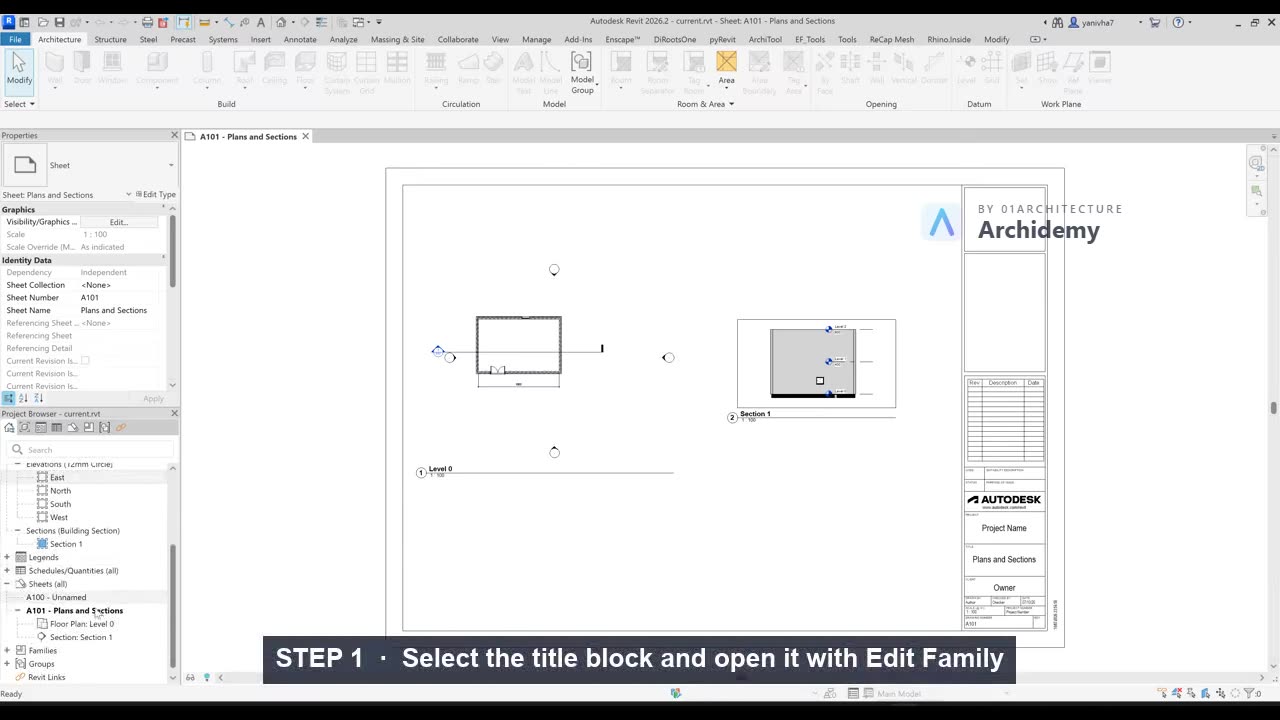
The recorded clip is for signed-in members. The written steps are below.
Sign in to watch- Create a new sheet:
- In the Project Browser, right-click Sheets (all).
- Select New Sheet….
- Choose an existing Titleblock family (e.g. default A1), or select None to start from a blank family.
- To edit an existing titleblock:
- Once on a sheet, select the titleblock border.
- Click Edit Family.
- In the family editor, you can:
- Edit lines that define the border size.
- Add or modify text fields (e.g. Project Name, Sheet Number).
- Measure and adjust to match standard sizes (e.g. A1 = 594×841 mm).
- Click Load into Project and Overwrite to update all sheets using that titleblock.
- To create a very simple custom border from scratch:
- Start with a new or blank titleblock.
- Use Annotate → Detail Line to draw a rectangle of the desired paper size.
- Use Aligned Dimension to check the overall size (e.g. 59.4 cm by 84.1 cm if working in cm).
- Add minimal text fields or labels as needed.
- Place a view on a sheet:
- In the Project Browser, drag a plan view (e.g. Level 2) onto the sheet.
- Click in the sheet to place it.
- Adjust scale and position:
- Double-click inside the view to activate it.
- In the View Control Bar, set the desired Scale (e.g. 1:2000, 1:500).
- Double-click outside the view to return to sheet mode.
- Select the viewport and move it to the desired position.
- Control crop and title:
- Select the viewport and enable Show Crop Region if needed.
- Double-click into the view to adjust the Crop Region shape.
- Back on the sheet (not in the view), select the viewport:
- In Properties → Title, choose:
- No title,
- Title with no line, or
- Title with line.
- In Properties → Title, choose:
- To hide the crop line in the sheet, toggle Crop Region Visible off while inside the view.
Note: Any changes made while “inside” the view (double-clicked) affect the view everywhere, not just on this sheet. Be careful when deleting or hiding elements in that state.
Taught in
- BIM + Computational Workflow · 2023 — original class recording lives there.
Was this lesson helpful?