Export Sheets to PDF
A correctly-sized, correctly-scaled vector PDF of your sheet — no printer drivers, no plugins.
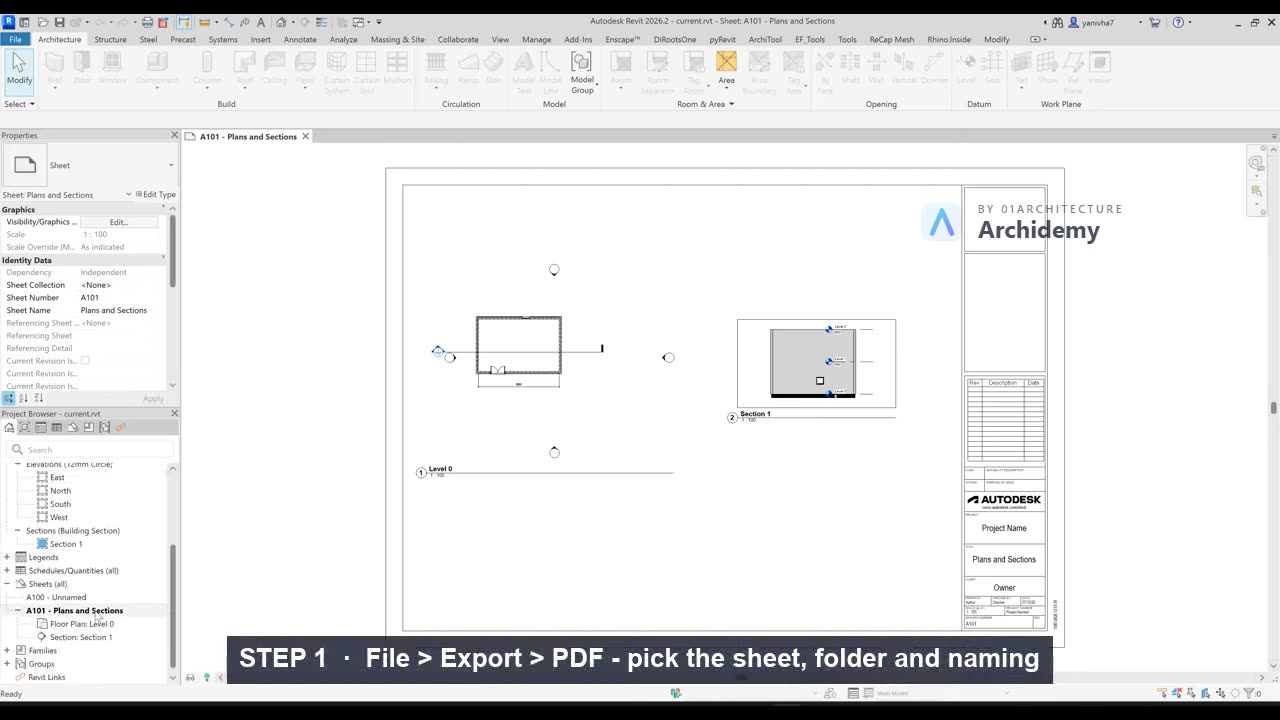
The recorded clip is for signed-in members. The written steps are below.
Sign in to watchSince Revit 2022, PDF is a built-in export, not a print job. This is the route professional offices use for issuing drawings, and the only one you need day to day.
- Open the sheet you want to issue (e.g.
A101 - Plans and Sections). - Go to File → Export → PDF.
- In the PDF Export dialog:
- Confirm your sheet is selected in the list (use Selected views/sheets to pick several at once).
- Set the output folder.
- Check the naming rule — by default the file is named from the sheet number and name (e.g.
A101 - Plans and Sections.pdf). You can build rules from parameters for issue packages. - Leave Combine into one file off for one PDF per sheet (easier to reissue a single drawing later).
- Click Export. That's it — the PDF is written at the exact paper size of your titleblock, as vector linework, at your views' true scales.
- Verify the result like a professional: open the PDF and check the titleblock size, lineweights, and that a known dimension measures correctly against the scale.
Why this beats "printing" to PDF: the paper size comes from your sheet, not from a printer driver's paper list, and there is no Fit to Page trap that silently rescales your 1:100 drawing.
Which route, when?
| Route | Use it when | Skip it when |
|---|---|---|
| File → Export → PDF | Always your default: issuing sheets, submitting coursework, sending to a print shop | — |
| Print → Microsoft Print to PDF | Quick A4/A3 one-off of the current view on any Windows machine | Large formats — A1/A0 aren't in its paper list |
| Virtual PDF printers (Bullzip, PDF Creator…) | Revit older than 2022, or special pipelines (watermarks, image output via the print driver) | Everything else — an extra install that native export made unnecessary |
If you need images instead of PDFs (for a portfolio or slides), Revit also has that natively: File → Export → Images.
Professional printing
The print shop does not want your Revit file — it wants exactly the PDF you just exported. Sending drawings to print professionally means: export at the sheet's real size (A1 titleblock → A1 PDF), one file per sheet with clean parameter-based names, and check the scale before sending. If you ever print directly to a physical plotter, use File → Print with the plotter's own driver and make sure Zoom is 100%, never Fit to Page — that is the one setting from the old print workflow still worth knowing.
Taught in
- BIM + Computational Workflow · 2023 — original class recording lives there (taught with a virtual printer, the pre-2022 route).