Workflow LibraryView Control & Graphics
Selecting by Type, Filtering, Isolating, and Hiding Elements
Select by type, filter, isolate and hide with intent.
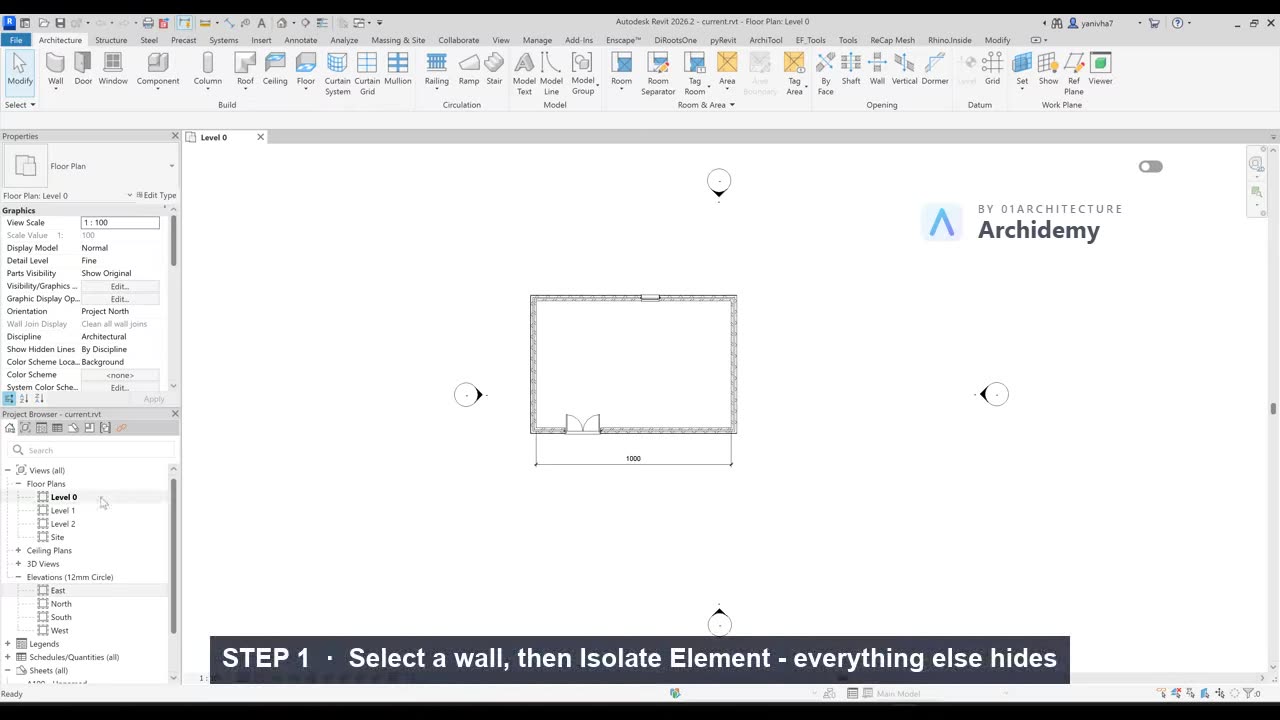
The recorded clip is for signed-in members. The written steps are below.
Sign in to watch- Select All Instances
- Right-click an element → Select All Instances → Visible in View or In Entire Project.
- Filter Selections
- Window-select a region → Filter → choose only categories you want (e.g. Walls).
- Temporary Isolate
- Use the Glasses icon → Isolate Element/Category.
- Press Reset when done.
- Hide in View
- Right-click → Hide in View → Elements/Category.
- Use the Lightbulb to reveal hidden items.
Tip:
Use Temporary Isolate for quick focus; use Hide in View for permanent cleanup of a specific view.
Taught in
- BIM + Computational Workflow · 2023 — original class recording lives there.
Was this lesson helpful?