Workflow LibraryView Control & Graphics
Open Your First Plan, Section, and 3D View
Three live views of the same building open side by side, with a working section line you cut yourself.
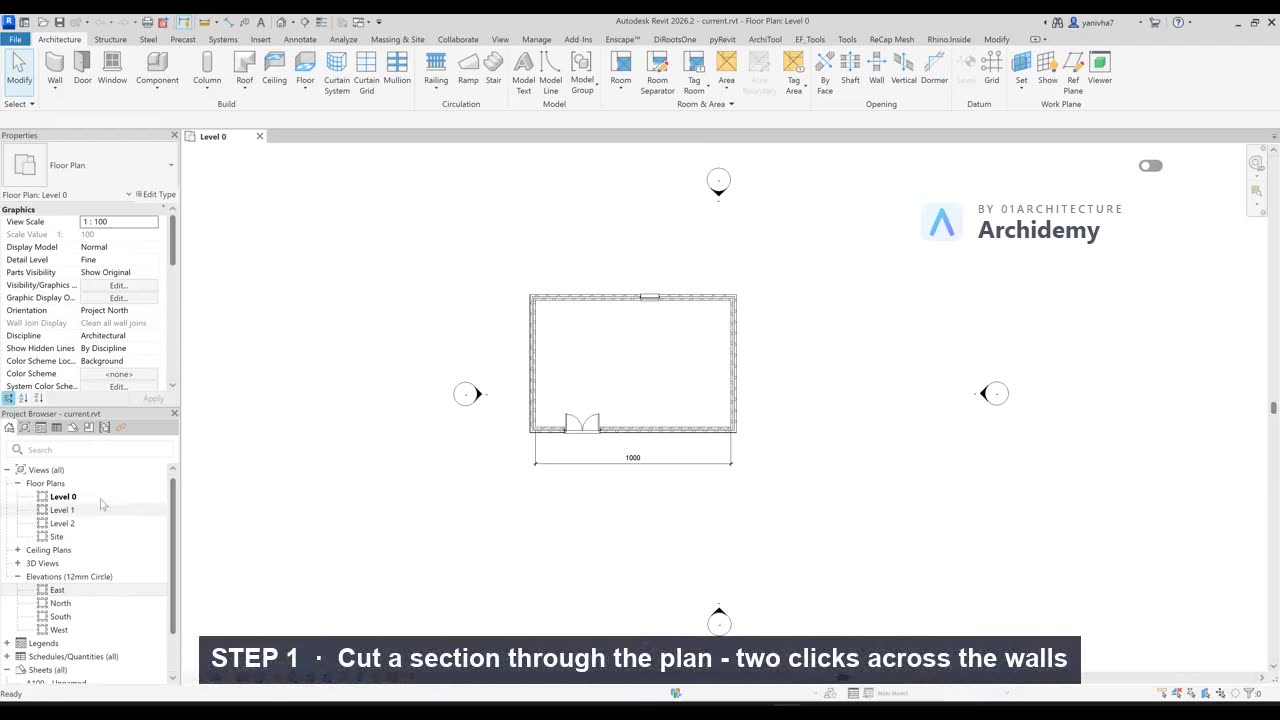
The recorded clip is for signed-in members. The written steps are below.
Sign in to watch- In the Project Browser (the tree on the left), double-click Floor Plans → Level 1 to open the ground-floor plan.
- If the browser is missing, restore it via View → User Interface → Project Browser.
- Cut a section through the building:
- Go to View → Section (the cursor becomes a crosshair).
- In the plan, click once to the left of the building, then click again to the right of it — the section line should cross straight through the walls.
- Press Esc twice to finish.
- Look at the section line you just placed:
- The small arrow on it shows the viewing direction; click the flip arrows (⇄) to look the other way.
- Drag the dashed far-clip boundary to control how deep the section sees.
- Open the section: double-click the blue section head (the circle at the end of the line) — or find it under Sections (Building Section) in the Project Browser.
- Open the 3D view: click the house icon (Default 3D View) on the Quick Access Toolbar, or View → 3D View.
- See all three views at once:
- Go to View → Tile Views (shortcut WT).
- Type ZE in each window to zoom each view to fit.
- Now prove to yourself these are live views of ONE model:
- In the plan, click a wall and drag it outward.
- Watch the section and the 3D view update instantly — nothing was redrawn, because all views read the same database.
- Return to one maximized window with Tab Views (View → Tab Views, shortcut TW), and close views you don't need — closing a view never deletes anything.
Note: In CAD you draw a plan, a section, and a model as separate drawings that can silently disagree; in Revit every view is just a camera pointed at the single model, so a change made anywhere is correct everywhere.
Taught in
- New for 2026 — first taught in BIM + Computational Workflow 2026.
Was this lesson helpful?