Workflow LibraryGroups, Schedules, Rooms & Areas
Build a Door Schedule That Fills Itself In
A live door schedule — Mark, Type, Width, Height, Level — sorted by level and placed on your sheet.
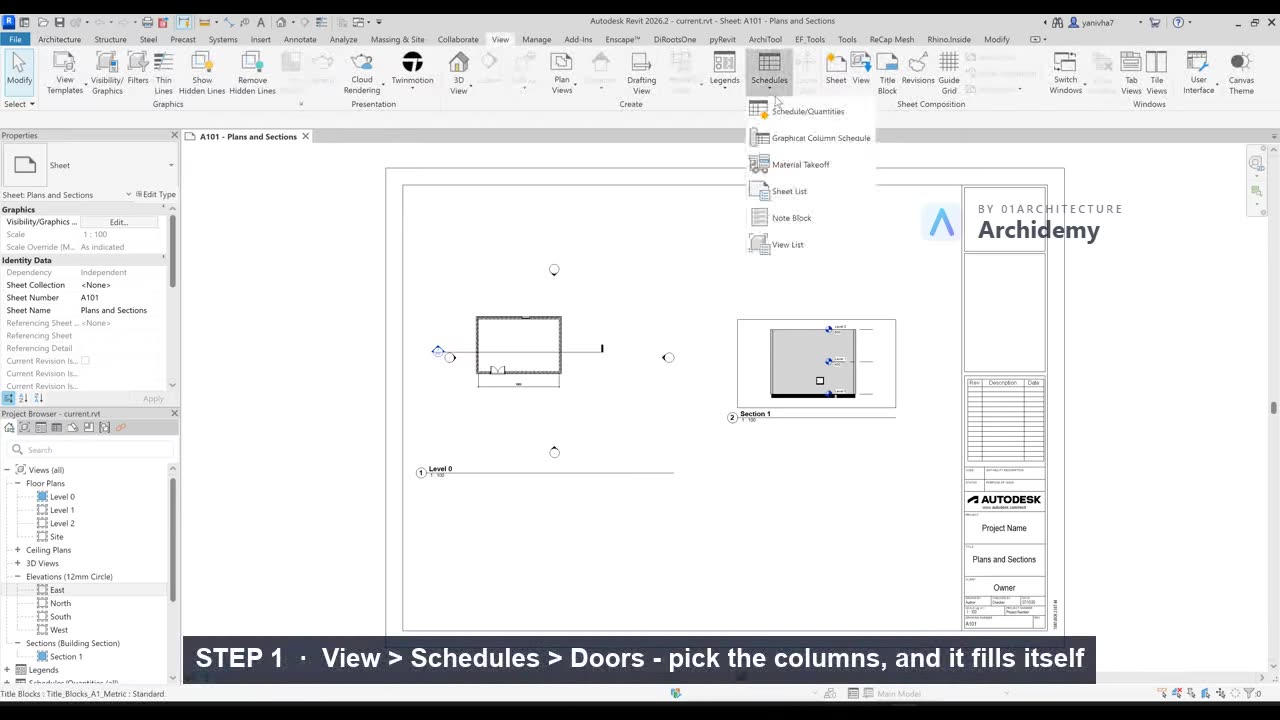
The recorded clip is for signed-in members. The written steps are below.
Sign in to watch- Make sure the model has at least two or three doors (Architecture → Door, shortcut DR, click on walls to place them).
- Create the schedule:
- Go to View → Schedules → Schedule/Quantities.
- In the Category list pick Doors, keep the name Door Schedule, and click OK.
- Choose the columns in the Fields tab:
- From Available fields, select and Add (→) these, in order: Mark, Type, Width, Height, Level.
- Use the Move Up / Move Down buttons to order them, then don't close the dialog yet.
- Sort it: switch to the Sorting/Grouping tab.
- Set Sort by: Level, then Then by: Mark.
- Make sure Itemize every instance (bottom) stays checked so every door gets its own row.
- Click OK — the schedule opens as a view and is already full of your doors.
- Read what happened: you never typed a single row. Each door you placed wrote itself into the schedule, widths and heights straight from the door types.
- Now push data the other way:
- In the schedule, click a Mark cell and type a new number (e.g.
D-01). - Open Level 1 plan and look at that door's tag — it changed too. The schedule is not a report; it is another view of the model, and it edits the model.
- In the schedule, click a Mark cell and type a new number (e.g.
- Try the reverse: select a door in plan, change its Mark in Properties, and watch the schedule row update.
- Place the schedule on your sheet:
- Open your sheet from Sheets (all) in the Project Browser.
- Drag Door Schedule from the Project Browser → Schedules/Quantities onto the sheet and click to place it.
- Drag the small column grips on the placed schedule to adjust column widths.
- Final test: delete a door from the model — its row vanishes from the schedule on the sheet, instantly.
Note: This is the "the model IS the database" moment — plans, tags, and schedules are all just different windows onto the same door objects, so a door counted once is counted correctly everywhere, forever.
Taught in
- New for 2026 — first taught in BIM + Computational Workflow 2026.
Was this lesson helpful?