Free
$0
forever, for learning and personal work
- Every export format
- Nothing to install
Load your Rhino model, let each layer map to a Revit type, check what Revit will actually build, and download one .architool file the ArchiTool for Revit add-in opens — native walls, floors, roofs, columns and beams.
Free to try, no account for the preview. First result under 5 min. Needs the Revit add-in.
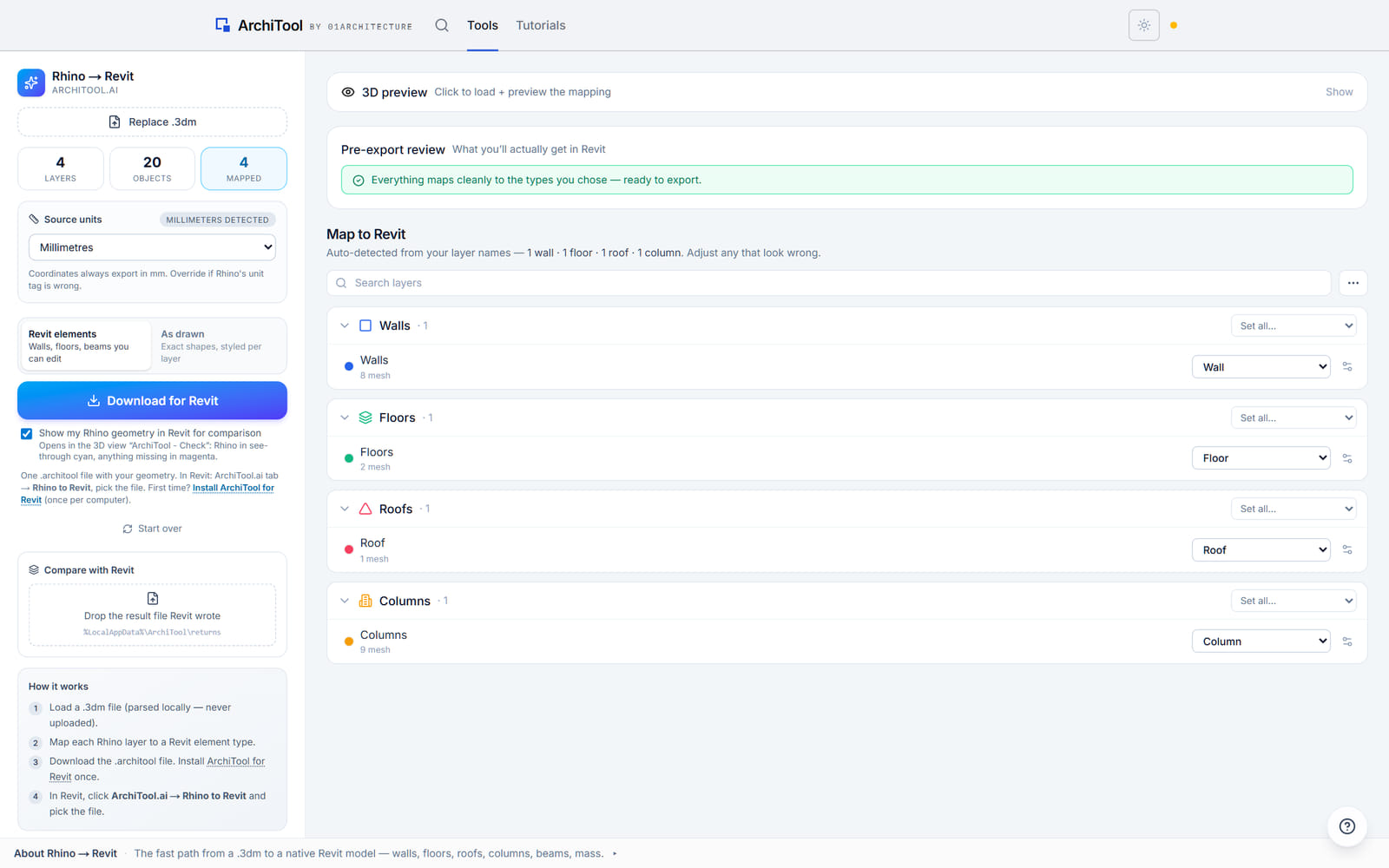
Layers map themselves
Named layers are auto-mapped to Revit types; change any that need it, and the mapping is remembered for that file.
See it before you export
A pre-export review says what will actually come in, and which objects Revit will build as a different type.
Editable, or as drawn
Native walls, floors and beams you can edit, or every object as its exact shape, styled per layer.
Parsed in your browser
The .3dm is read locally and leaves only as the .architool file you download.
Rhino → Revit
Drop a .3dm and the tool reads its layers, suggests a Revit type for each from the layer name, and shows you exactly what will be built before anything is exported.
Choose Revit elements for native walls, floors and beams you can edit in Revit, or As drawn to bring the model in as its exact shapes, styled per layer, for coordination or quick drawings. The pre-export review lists the objects that will come in as a different type — an awkward block as Mass, a freestanding pier as Column — and any layer that would produce nothing. Download one .architool file, open it from the ArchiTool.ai tab in Revit, and the add-in builds the model.
Auto-mapped layers
Walls, floors, roofs, columns, beams, windows, doors and more
Pre-export review
What each object will become in Revit
Two ways to bring it in
Editable elements, or exact shapes as drawn
Plans
The whole tool is open from a free account.
Free
$0
forever, for learning and personal work
Pro
$29
per month, or $290 a year
Education
Free
with a verified academic email
Limits shown are the live ones for this tool. Free and Education are for learning and personal exploration; client and commercial work needs Pro. See the terms. Want the method and its limits? Read the tutorial.
Export formats
The model leaves as one .architool file the ArchiTool for Revit add-in opens; the result Revit writes back can be read in the tool to compare what was built.
Opens in Revit through the ArchiTool for Revit add-in; the review and the comparison run in your browser.
Revit
One .architool file the add-in opens via ArchiTool.ai → Rhino to Revit, building native elements in the open model.
Your model
FAQ
Everything about data, formats and plans. Still curious? The tutorial goes deeper, and the Report button inside the tool reaches us.
A Rhino .3dm with your model on named layers, and the ArchiTool for Revit add-in, installed once. The file is read in your browser; nothing is uploaded.
One .architool file with your geometry, which the ArchiTool for Revit add-in opens in Revit. After an import, Revit writes a result file the tool can read back to compare what was built.
Each layer is auto-mapped to a Revit type from its name — walls, floors, roofs, columns, beams, windows, doors, stairs, railings and curtain walls — and you can change any mapping; it is remembered for that file.
Revit elements brings in native walls, floors and beams you can edit in Revit; As drawn brings every object in as its exact shape, styled per layer, for coordination or fast drawings.
Before you export, it lists what each mapped object will actually become in Revit, including the objects it will build as a different type and any mapped layer that would produce nothing.
Yes. Turn on the comparison to show your Rhino geometry in the Revit 3D view ArchiTool - Check, and drop the result file Revit writes back into the tool to compare it.
No. The .3dm is parsed in your browser; it leaves only as the .architool file you download.
From a layered .3dm to a native Revit model, walls and floors included.